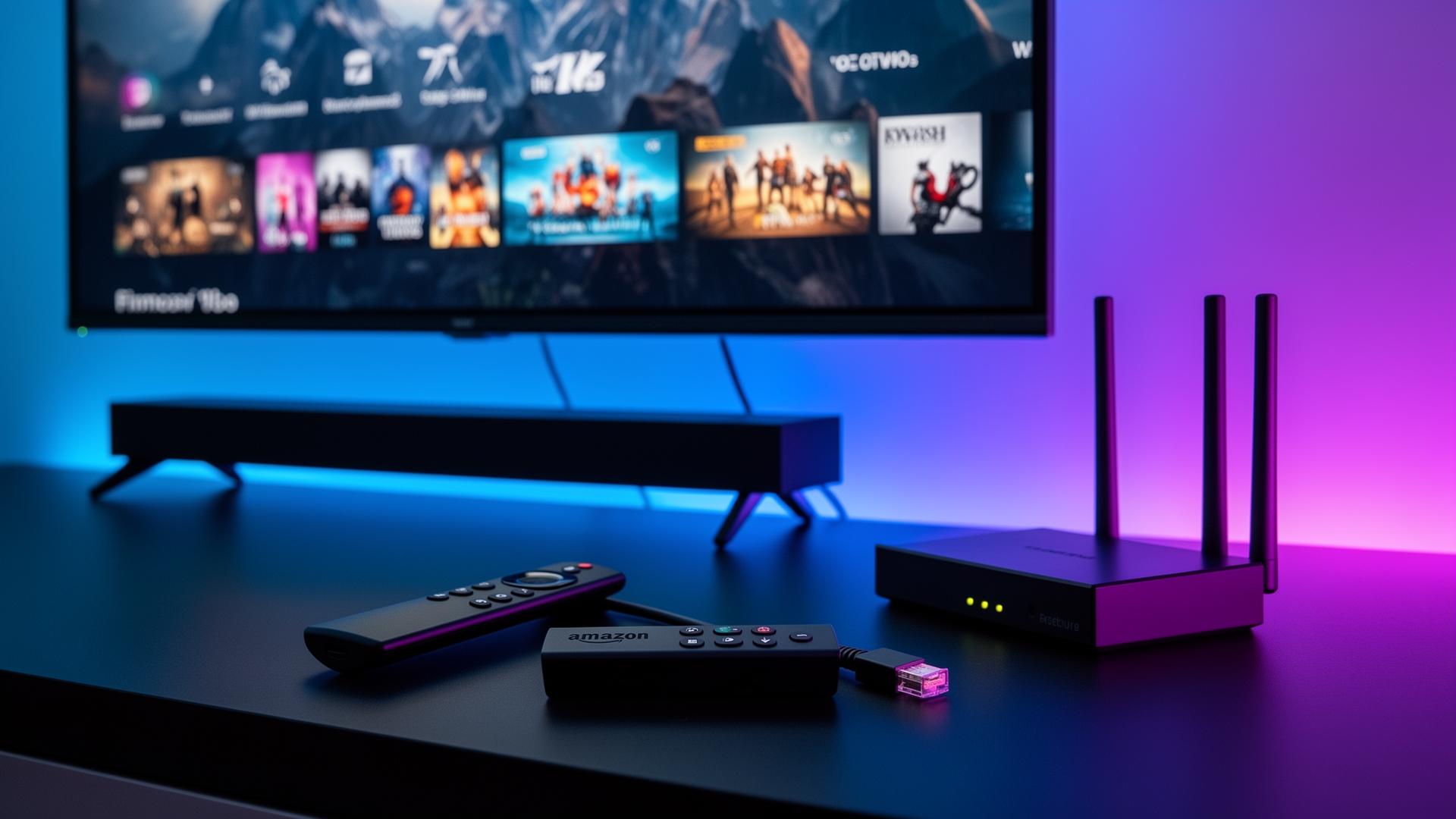
Nothing ruins a movie night or a live match faster than the spinning circle of doom. IPTV buffering is one of the most common complaints among cord-cutters, especially on Amazon Firestick, budget Android boxes and older Smart TVs. The good news: most buffering is fixable in under ten minutes without technical expertise.
In this 2026 troubleshooting guide we will walk through the real causes of IPTV lag and give you a step-by-step action plan — from clearing the app cache and switching DNS to 1.1.1.1, to using an ethernet cable and upgrading to an anti-buffer service. By the end you will know exactly how to stop IPTV buffering for good.
Why Does IPTV Keep Buffering?
Buffering happens when your device runs out of downloaded video data before the next chunk arrives. The screen freezes while the player waits. Common triggers include:
Slow or unstable Wi-Fi
HD needs ~10 Mbps, 4K needs ~25 Mbps. Shared or distant Wi-Fi often falls below that.
ISP throttling or DNS delays
Some ISPs slow streaming traffic. Slow DNS servers can also add seconds to every channel switch.
Bloated app cache
IPTV apps store thumbnails, EPG data and temp files. Over time this cache slows the player or causes freezes.
Overloaded provider servers
Cheap providers cram too many users onto one server. Peak-time lag is usually the first sign.
Background apps & devices
Downloads, updates and other streams consume bandwidth and RAM, leaving little for IPTV.
Step 0: Test Your Internet Speed
Before changing settings, confirm your connection can actually handle IPTV. Run a speed test on the device where you watch IPTV, not on a phone next to the router. Stand close to the TV during the test for an honest result.
- SD streaming: 5 Mbps minimum
- HD streaming: 10 Mbps minimum
- Full HD streaming: 15 Mbps recommended
- 4K UHD streaming: 25 Mbps+ recommended
If your speed is fine but IPTV still freezes, the problem is likely the app, DNS, Wi-Fi congestion or the provider. Keep reading for the fixes.
Fix 1: Clear the IPTV App Cache
IPTV apps cache channel logos, EPG data and temporary video segments. Over time this cache grows and slows the app down, causing startup lag, frozen menus and playback stutter. Clearing it is safe and should be your first fix.
How to clear cache on Firestick / Android TV
- Open Settings on your Firestick, Android TV or Smart TV.
- Go to Applications → Manage Installed Applications.
- Select your IPTV app (IPTV Smarters, TiviMate, etc.).
- Choose Clear Cache first. If problems persist, choose Clear Data and re-enter your login.
- Restart the app and test a live channel for 60 seconds.
Make this a monthly habit. If you use TiviMate, also go to Settings → EPG → Clear EPG data to refresh the programme guide.
Fix 2: Change DNS to 1.1.1.1
DNS servers translate website and streaming addresses into IP addresses. Many ISP DNS servers are slow or unreliable, which makes channel switching take forever. Cloudflare DNS (1.1.1.1) and Google DNS (8.8.8.8) are public, fast and privacy-focused.
How to change DNS on Firestick / Android TV
- Open Settings → Network on your Firestick, Android TV or router.
- Find the DNS section and switch from Auto to Manual.
- Set Primary DNS to 1.1.1.1 and Secondary DNS to 1.0.0.1.
- Alternatively use Google DNS: 8.8.8.8 and 8.8.4.4.
- Save, restart the device, then test channel loading speed.
Changing DNS helps channel zapping speed more than raw buffering, but it is a free, one-minute change that often removes the annoying 5–10 second black screen between channels.
Fix 3: Use Ethernet Instead of Wi-Fi
Wi-Fi is convenient but vulnerable to interference from walls, microwaves, baby monitors and neighbouring networks. Ethernet delivers a stable, low-latency connection directly from your router to the streaming device. This is the single most effective hardware fix for IPTV buffering.
How to wire your Firestick or Smart TV
- Connect an ethernet cable from your router to the Firestick via an OTG adapter, or directly to your Smart TV/Android box.
- Disable Wi-Fi in device settings so it routes traffic through the cable.
- Run a speed test. Wired connections typically deliver 50–90% of your plan speed, versus 30–70% on Wi-Fi.
- Open IPTV and stream a 4K channel for several minutes to confirm stability.
If your TV is far from the router, powerline adapters or a mesh Wi-Fi node placed near the TV are the next best options. They are not as stable as ethernet, but far better than a weak Wi-Fi signal across the house.
Fix 4: Reduce Wi-Fi Congestion
If ethernet is not possible, optimise the wireless environment. A few small changes can turn a choppy stream into a smooth one:
- Move your router closer to the TV or use a mesh extender.
- Switch to the 5 GHz band if your device supports it — it is less crowded than 2.4 GHz.
- Ask family members to pause 4K Netflix, downloads and cloud backups while you watch live sports.
- Reboot the router once a week to clear stale connections.
Fix 5: Close Background Apps
Firestick and budget Android boxes have limited RAM. If Netflix, YouTube, games or file-sharing apps are running in the background, they steal memory and bandwidth from your IPTV player. Force-close everything except your IPTV app before watching.
On Firestick, hold the Home button, select Apps and force-close unused apps. On Android TV, go to Settings → Apps → See all apps and force-stop any heavy apps.
Fix 6: Use a VPN When Needed
Some internet providers detect IPTV traffic and throttle it during peak hours. A quality VPN encrypts the connection and hides the traffic type, which can restore full speed. The key is speed: pick a VPN with a WireGuard protocol and a server close to your city.
If you already have a VPN, test with it on and off. Sometimes turning the VPN off actually improves speeds because the VPN server is overloaded. Use it as a diagnostic tool, not a default setting.
Fix 7: Upgrade to an Anti-Buffer IPTV Provider
If you have tried every local fix and IPTV still buffers, the bottleneck is almost certainly your provider. Cheap services overload their servers, have no redundancy and disappear when support is needed. A premium provider invests in the infrastructure that actually stops buffering.
Why FluxTV is built against buffering
- Anti-freeze technology — adaptive bitrate and load balancing keep streams stable during peak sports and movie nights.
- Global edge servers — low-latency nodes across North America, Europe and Australia reduce hops between you and the stream.
- Instant activation — start watching in minutes, with credentials sent by email and WhatsApp.
- 24/7 human support — real technicians help you troubleshoot cache, DNS, ethernet and VPN settings.
Frequently Asked Questions
Conclusion
IPTV buffering is frustrating, but it is rarely permanent. Start with the fastest free fixes: clear your app cache, switch DNS to 1.1.1.1 and close background apps. Then move to network improvements: reduce Wi-Fi congestion and, whenever possible, use ethernet. If your ISP throttles streaming, test a VPN. If none of these fixes work, your provider is the weakest link.
FluxTV was built for viewers who are tired of buffering. Our anti-freeze servers, 4K streams and 24/7 support are designed to give you the smooth IPTV experience you paid for. Start with a free 24-hour trial and see the difference on your Firestick, Smart TV or Android box today.